-
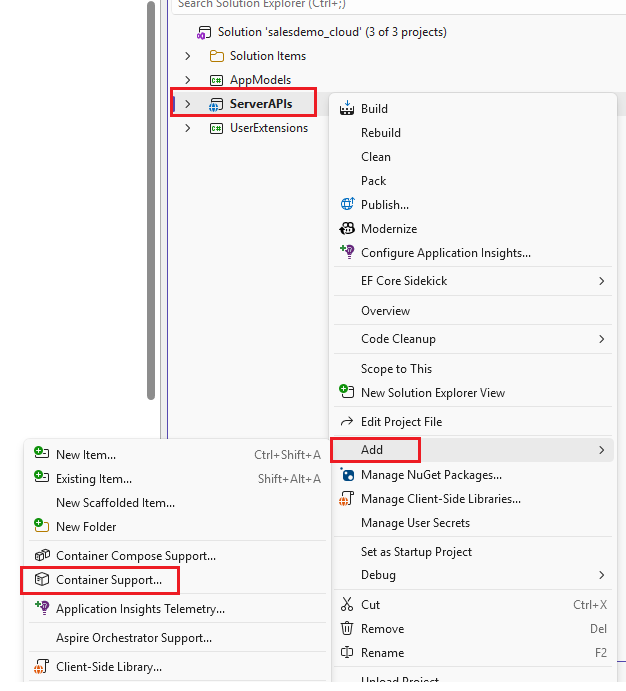
In Solution Explorer, right-click the
ServerAPIsproject. -
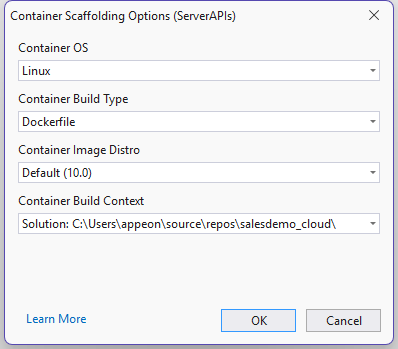
Add Docker support and create a Dockerfile.
-
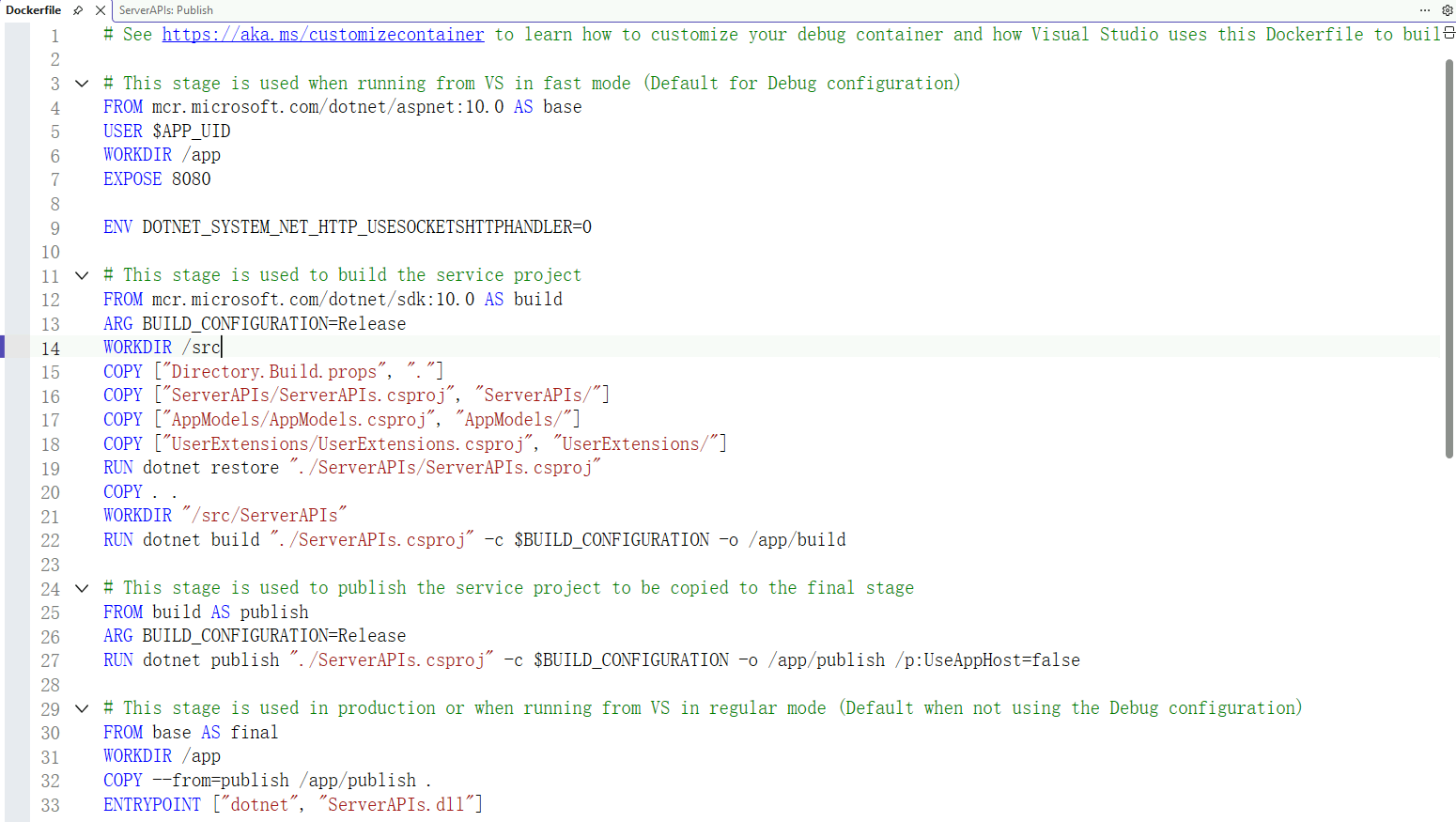
After the Dockerfile is created, you can view it in the project directory.
-
Right-click the
ServerAPIsproject. -
Select Publish > Docker Container Registry.
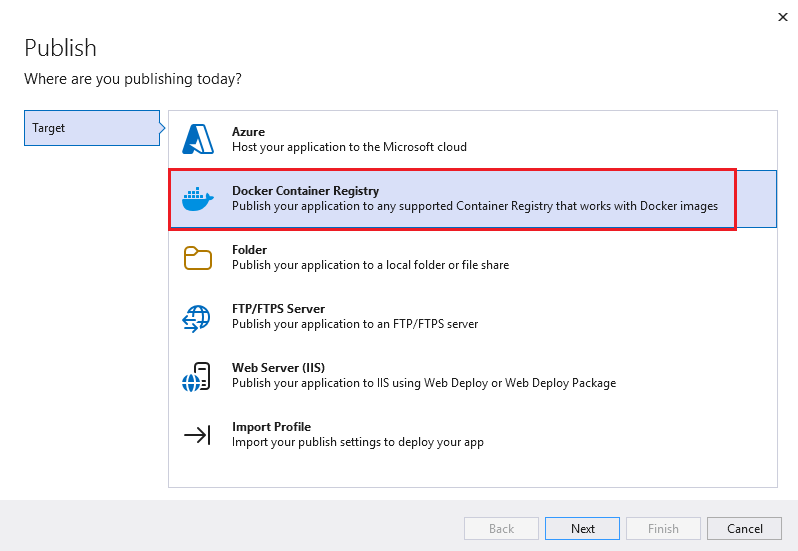
-
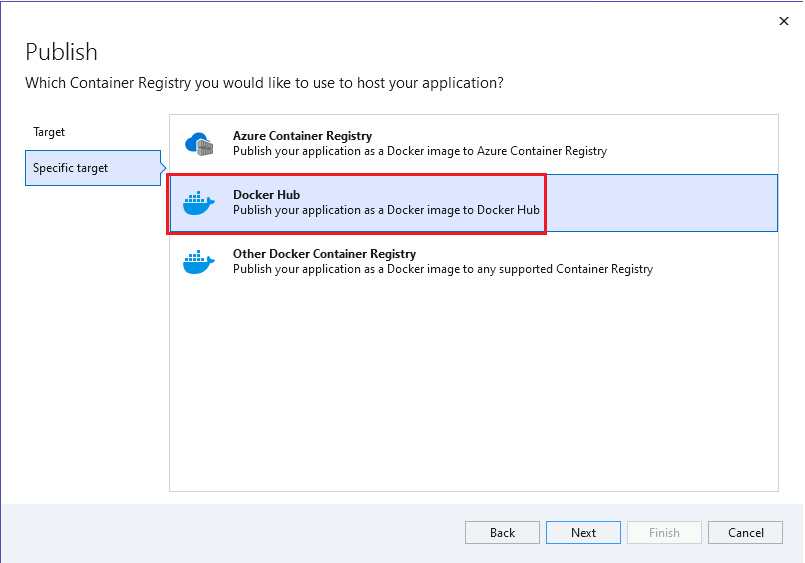
In the Specific Target page, select Docker Hub.
-
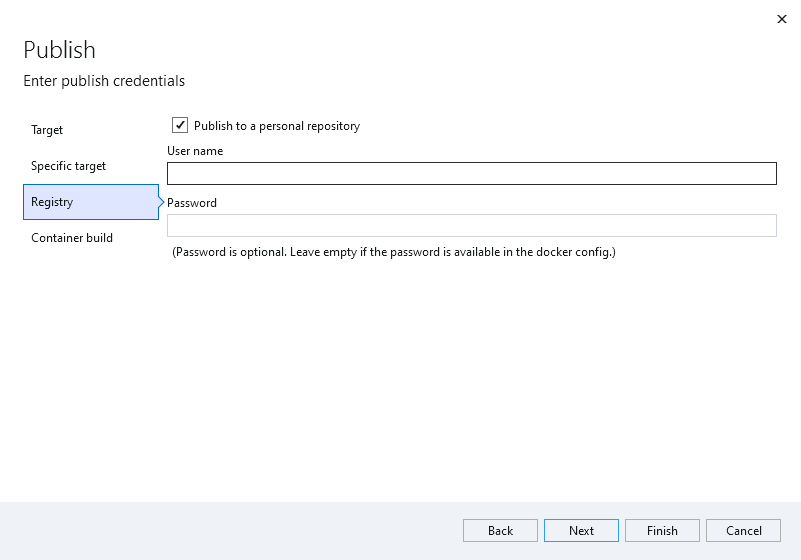
Enter the Docker Hub username and password.
-
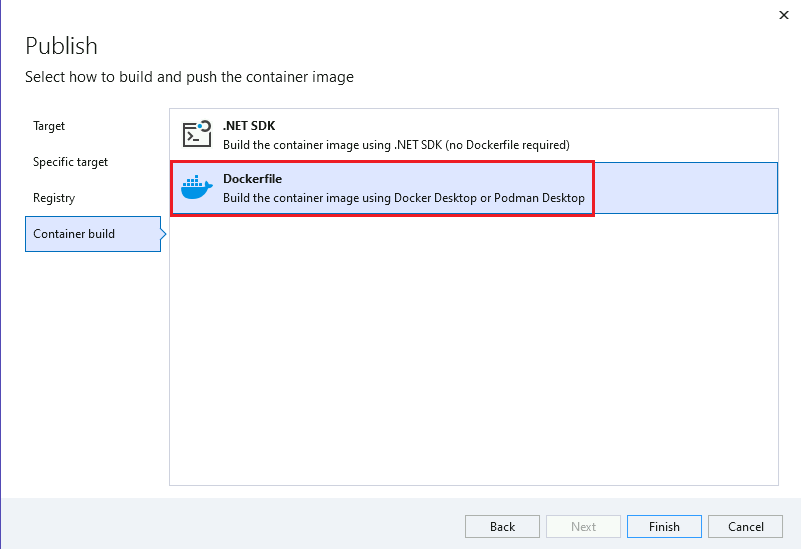
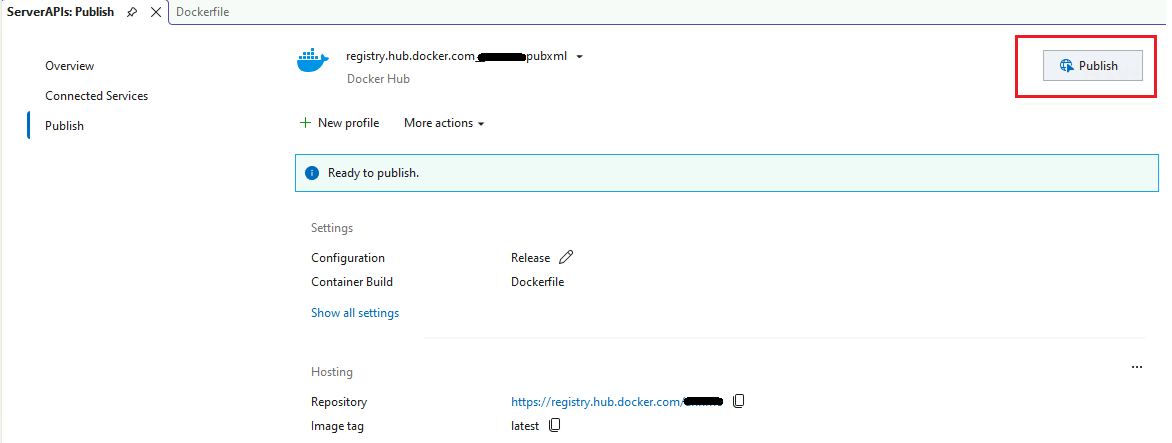
In the Container Build page, select Dockerfile as the build method.
-
Click Publish to publish the Docker image.
-
After publishing is complete, you can view the generated image in Docker Desktop.

-
Open a command prompt and run the following command to start the container:
docker run -d -p 5000:8080 --name salesdemocloud_container salesdemocloud
Parameter descriptions:
-
-d: Runs the container in detached mode. -
-p 5000:8080: Maps port 5000 on the host to port 8080 in the container. -
--name: Specifies the container name.
-