

With the production license code in your hands, it can then be applied to the PowerServer project. This can be done either before or after the Web APIs are compiled (with another license, such as a developer license that should now be replaced with a production license), we will explore both situations.
To replace the developer license after the Web APIs are compiled:
-
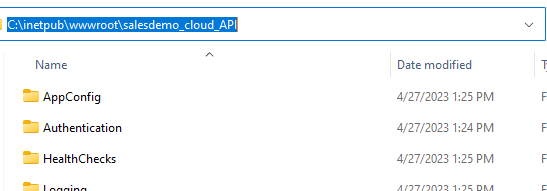
Go to the location where the Web APIs were deployed. In this example, the location is C:\inetpub\wwwroot\salesdemo_cloud_API (when deployed to IIS).
-
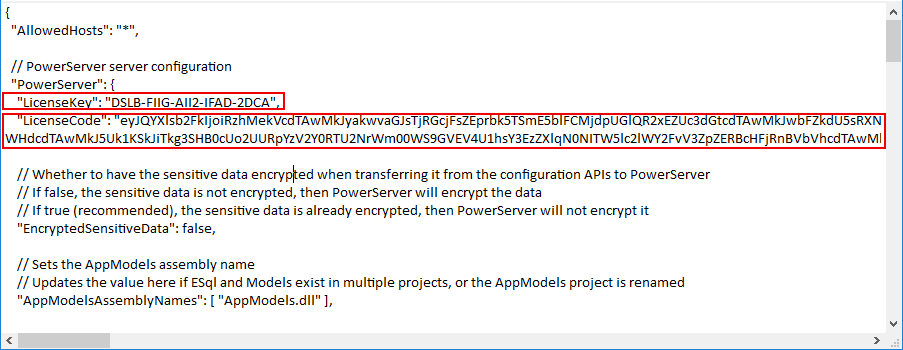
Open the UseConfig.json file inside this location with your editor of choice.
-
Replace the LicenseKey and LicenseCode values with the filename and contents of the license file respectively.
-
Save the file and restart PowerServer Web APIs for the license to be reloaded.
To replace the developer license before compiling the Web APIs to DLLs:
-
Go to the "Deploy" page of the PowerServer project.
-
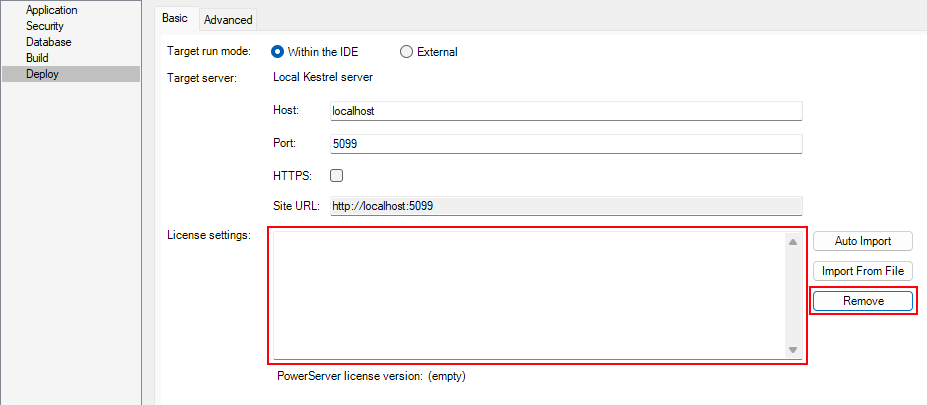
Click on the "Remove" button of the "License settings" section. This will remove the PowerServer developer license (if any).
The license information will now be empty:
-
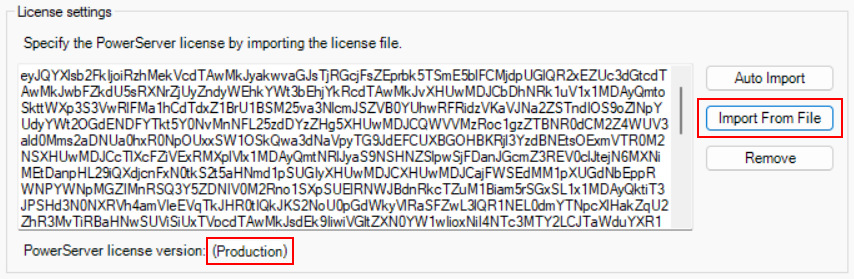
Now click on "Import from File" and import the text file with the production license code.
The production license has now been applied to this project.
You can now deploy your PowerServer project using the production license. The new license will be updated to the "LicenseKey" and "LicenseCode" settings in the Web API project.
It is possible to switch between developer and production licenses. To revert back to the developer license, simply click the "Remove" button and click on "Auto Import".
