

The following lists a few common scenarios where long connections can be enabled to overcome the problem.
Scenario 1: Temporary table used in DataWindow
When converting the DataWindow to model during PowerServer deployment, an error message "Invalid object name '#xxx'" occurs in the PowerServer Output window due to the use of a temporary table (for example, #product_list) in DataWindow.

Solution: 1) Create a physical table instead of using a temporary table; or 2) To continue using a temporary table, you can set LongConnection=1 in DBParm to enable a long connection.
Scenario 2: Temporary table used in embedded SQL
Using a temporary table in the embedded SQL will result in the error message "Invalid object name '#xxx'" during the application execution.
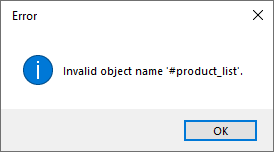
Solution: 1) Set LongConnection=1 in DBParm. This allows for a long connection, which enables the temporary table to persist throughout the duration of the application session; or 2) Convert the temporary table to a physical table.
Scenario 3: Temporary table used when dynamically creating DataWindow
When creating a DataWindow dynamically using the SyntaxFromSQL function, the retrieve operation fails with the error message "Invalid object name '#xxx'" due to the use of a temporary table (for example, #product_list).
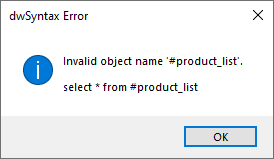
Solution: Similar to the previous scenario, you can set LongConnection=1 or convert the temporary table to a physical table.
Scenario 4: Inconsistent information with set_context and sys_context functions
When utilizing functions like set_context and sys_context in databases like Oracle, the information returned is different in each call in the short-lived connection. For instance, the sessionid obtained in the following script may differ each time in PowerServer.
SELECT SYS_CONTEXT('userenv', 'sessionid') into :ll_session from dual using sqlca;Solution: Enable a long connection by setting LongConnection=1 in DBParm.
