In this example, the Web API service is deployed to the IIS site Default Web Site on a machine with IP address 172.26.100.11.
-
Install Web Deploy on both machines where Visual Studio Code is installed and the IIS web site is hosted.
-
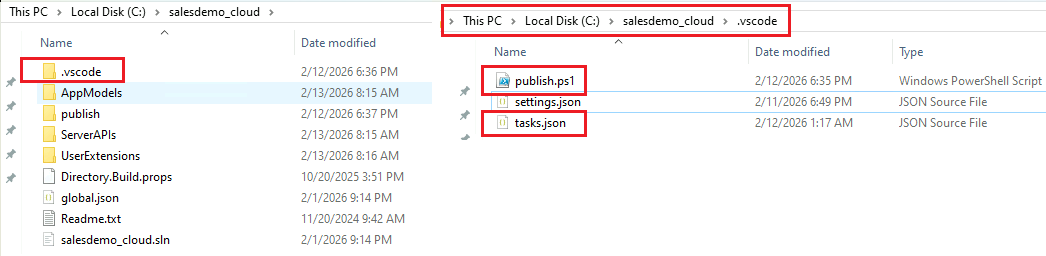
Create files under the .vscode folder in the root directory of the Web API project.
-
Manually create a publish.ps1 file:
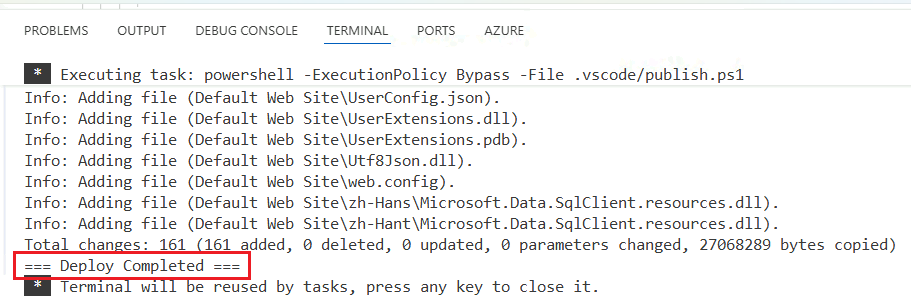
$ErrorActionPreference = "Stop" $projectPath = "C:\Users\app\source\repos\salesdemo_cloud\ServerAPIs\ServerAPIs.csproj" $publishPath = "C:\Users\app\source\repos\salesdemo_cloud\publish" if (Test-Path $publishPath) { Remove-Item $publishPath -Recurse -Force } dotnet publish $projectPath -c Release -o $publishPath $server = "172.26.100.11" $username = "administrator" $password = "password" $msdeploy = "C:\Program Files (x86)\IIS\Microsoft Web Deploy V3\msdeploy.exe" $dest = 'contentPath="Default Web Site",computerName="https://172.26.100.11:8172/msdeploy.axd?site=Default Web Site",userName="administrator",password="password",authType="Basic"' & $msdeploy ` -verb:sync ` -source:contentPath="$publishPath" ` -dest:$dest ` -allowUntrusted ` -enableRule:AppOffline ` -enableRule:DoNotDeleteRule Write-Host "=== Deploy Completed ===" -
Manually create a tasks.json file:
{
  "version": "2.0.0",
  "tasks": [
    {
      "label": "🚀 One Click Publish (IIS Test)",
      "type": "shell",
      "command": "powershell",
      "args": [
        "-ExecutionPolicy",
        "Bypass",
        "-File",
        ".vscode/publish.ps1"
      ],
      "group": "build",
      "problemMatcher": []
    }
  ]
}
-
-
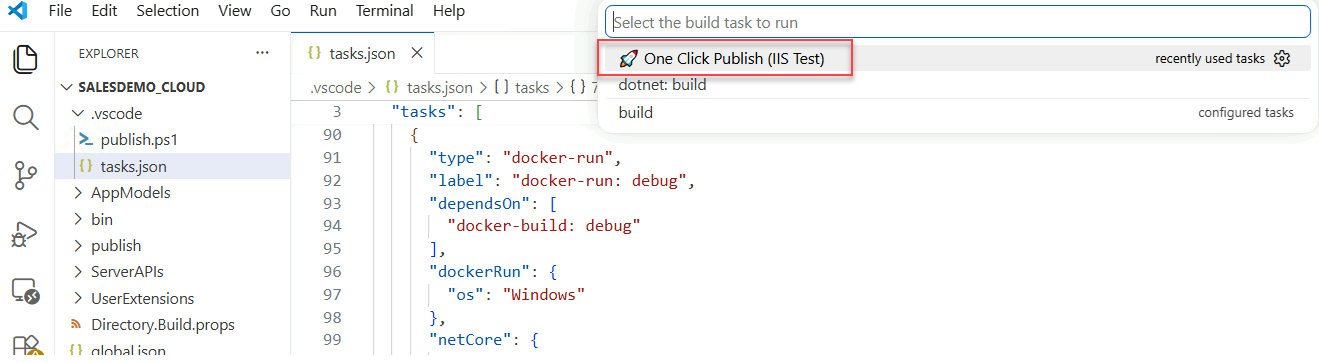
In Visual Studio Code, press Ctrl + Shift + B.
-
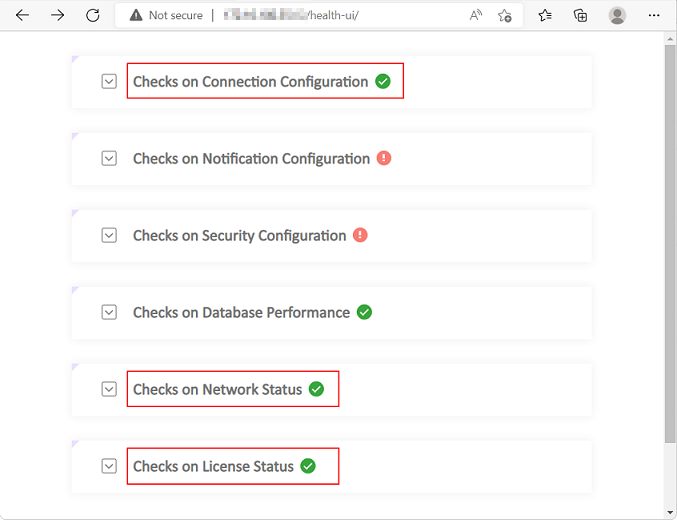
After publishing, open a browser and visit http://172.26.100.11/health-ui to verify whether the service has started successfully.
Make sure a green check icon is displayed for "Checks on Connection Configuration", "Checks on Network Status", and "Checks on License Status" (as shown below).