

Please read the following official documentation before performing the deployment: https://code.visualstudio.com/docs/containers/quickstart-aspnet-core.
-
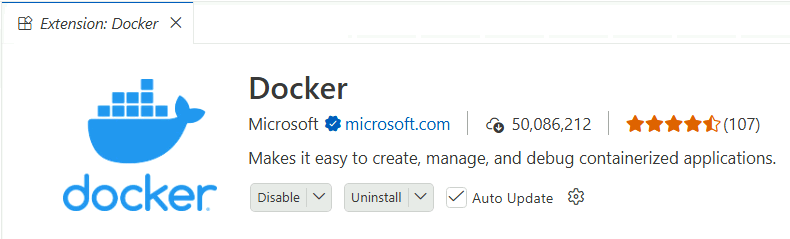
Install the Docker extension.
-
Manually create a docker file under the ServerAPIs folder.
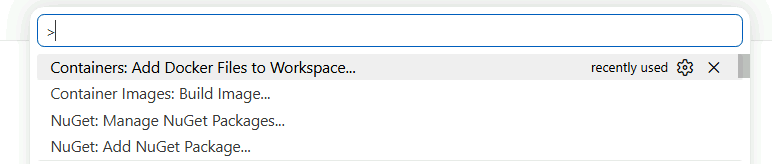
Press Ctrl + Shift + P to generate a docker file using the extension, then add the following highlighted content:
FROM mcr.microsoft.com/dotnet/aspnet:8.0 AS base WORKDIR /app EXPOSE 5100 ENV ASPNETCORE_URLS=http://+:5000 USER app FROM --platform=$BUILDPLATFORM mcr.microsoft.com/dotnet/sdk:8.0 AS build ARG configuration=Release WORKDIR /src ########Add the following lines######## COPY ../Directory.Build.props ./ COPY ["ServerAPIs/ServerAPIs.csproj", "ServerAPIs/"] COPY ["AppModels/AppModels.csproj", "AppModels/"] COPY ["UserExtensions/UserExtensions.csproj", "UserExtensions/"] ################################# RUN dotnet restore "ServerAPIs/ServerAPIs.csproj" COPY . . WORKDIR "/src/ServerAPIs" RUN dotnet build "ServerAPIs.csproj" -c $configuration -o /app/build FROM build AS publish ARG configuration=Release RUN dotnet publish "ServerAPIs.csproj" -c $configuration -o /app/publish /p:UseAppHost=false FROM base AS final WORKDIR /app COPY --from=publish /app/publish . ENTRYPOINT ["dotnet", "ServerAPIs.dll"] -
Build the Docker image.
In Visual Studio Code – TERMINAL, navigate to the ServerAPIs folder and run:
docker build -f Dockerfile -t salesdemocloud2

-
Run the container.
In PowerShell, execute:
docker run -d -p 5000:8080 --name salesdemocloud2_container salesdemocloud2

-
Open a browser and visit http://172.26.100.100:5000/health-ui. If the page loads successfully, the deployment to Docker is complete.
To deploy the Web APIs to Azure, you can upload the deployed Docker image to Azure. For the upload steps, please refer to the official documentation: https://code.visualstudio.com/docs/container/app-service.
