If you use IIS to host PowerServer Web APIs and/or application files, configure it properly to enable Windows Authentication.
Step 1: Enable IIS Windows Authentication Feature
-
Open Server Manager on the Windows server.
-
Go to Add Roles and Features.
-
Under Server Roles, make sure Web Server (IIS) is installed.
-
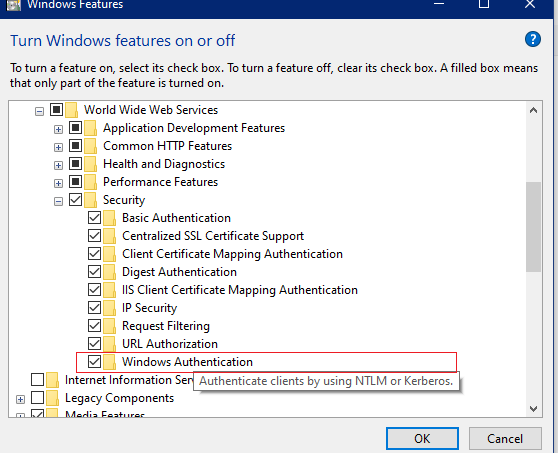
In Role Services, enable Windows Authentication.
Step 2: Configure IIS Authentication for the Application
-
Open the IIS Manager and navigate to the application site.
-
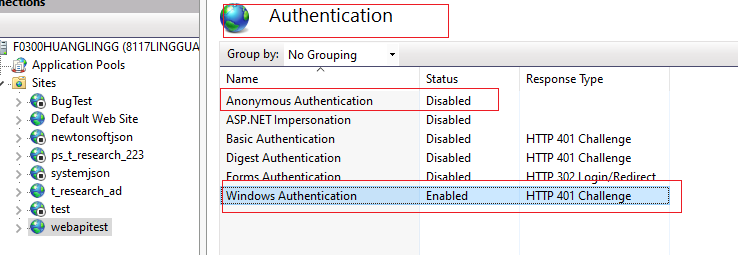
Select Authentication under the IIS section.
-
Enable Windows Authentication.
-
Disable Anonymous Authentication if you want to force Windows login.
Step 3: Configure Authentication in PowerServer Project
After IIS has been set up, configure the authentication mode inside the PowerServer project:
-
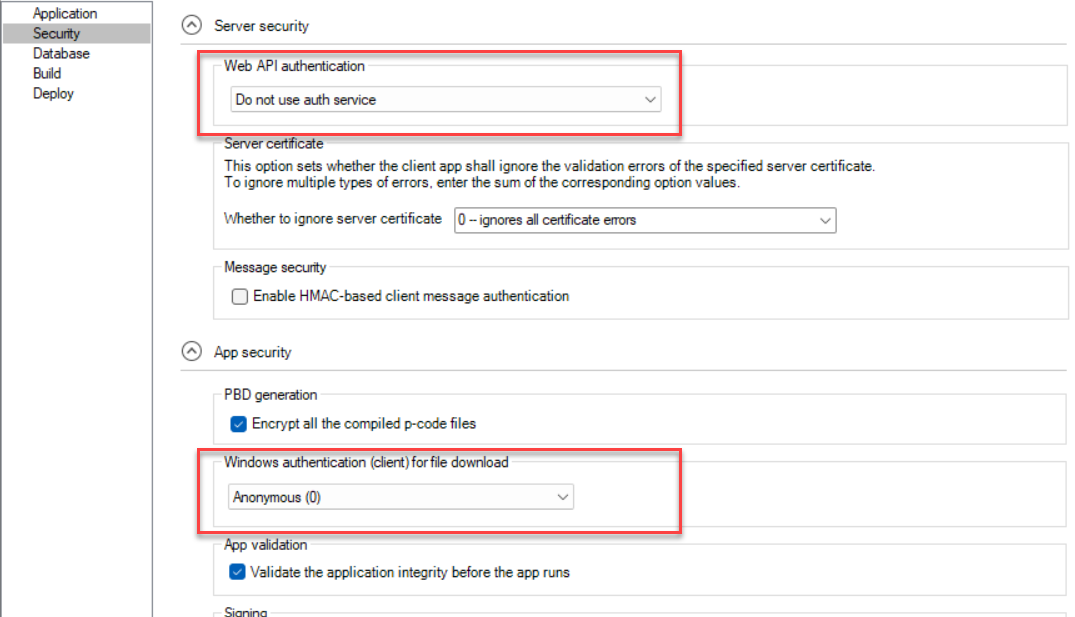
In the project painter, go to the Security page.
-
For Web APIs, select the authentication mode under Web API authentication.
-
For app file downloads, select the authentication mode under Windows authentication (client) for file download.