

Windows considers each type of access — such as opening a website, downloading application files, or calling a Web API — as an independent resource. For security, Windows performs a separate authentication check for each resource. That means even though all these actions belong to the same application, Windows still verifies credentials separately, ensuring that access to one resource does not automatically grant access to another.
Because of this, users may see more than one login prompt, in the following scenarios within PowerServer (PowerClient is similar with scenario 1 and 2):
-
Scenario 1: Accessing the Website
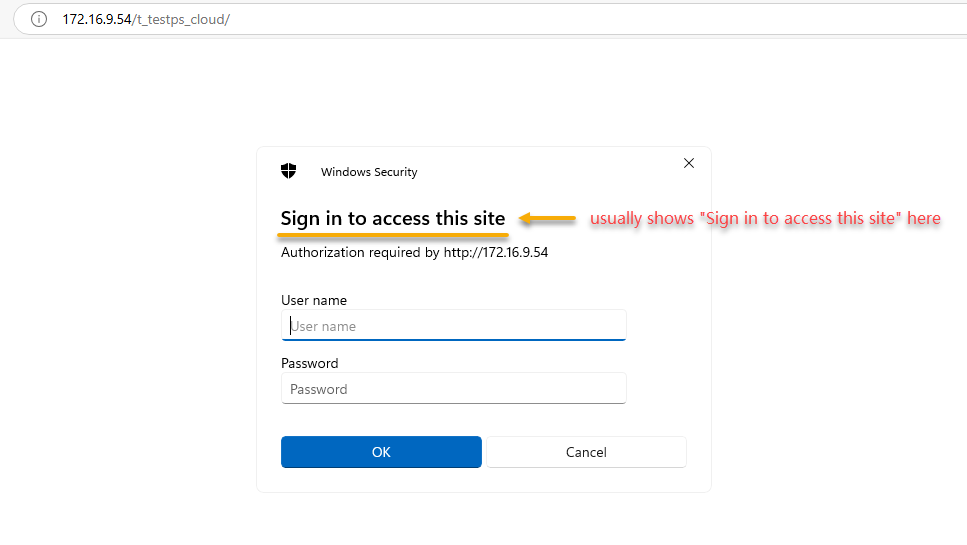
When opening the Web Portal, IIS or a proxy may ask for Windows login (often shown as "Sign in to access this site"). This is standard Windows behavior.
-
When it appears: If IIS has enabled Windows authentication and the application is accessed from a web browser.
-
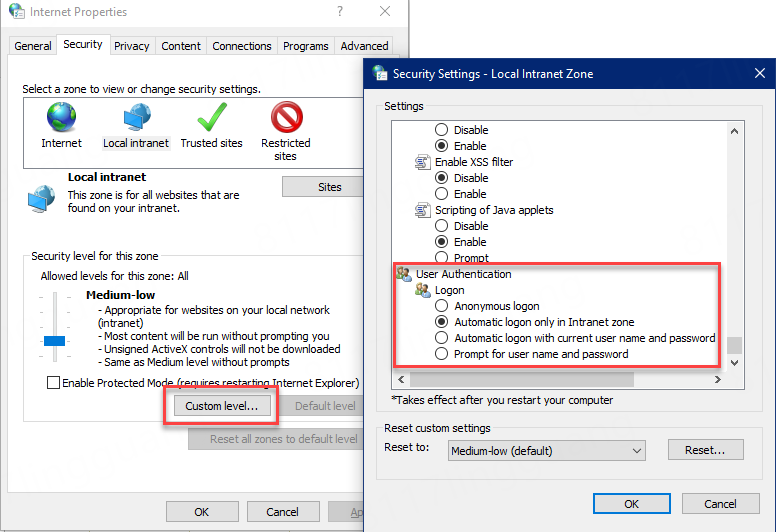
How to avoid it: This prompt is NOT related to the PowerServer project settings. You can change the browser settings to avoid this prompt, or launch the application from a desktop shortcut (no prompt).
-
-
Scenario 2: Downloading the app via launcher
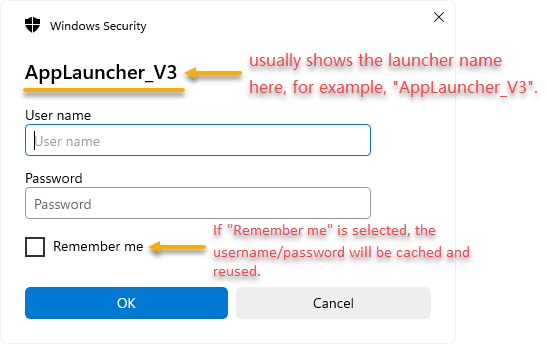
When the Cloud App Launcher downloads app files, it may ask for login. The dialog usually shows the launcher name (for example, "AppLauncher_V3").
-
When it appears: If IIS has enabled Windows authentication and the PowerServer app security is set to Windows authentication (User password).
-
How to avoid it: Change the PowerServer app security to Windows authentication (Integrated).
-
-
Scenario 3: Calling Web APIs from the app
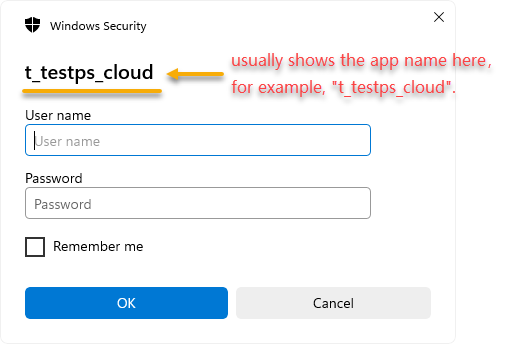
When the app calls the Web API, another login may appear. The dialog usually shows the app name (for example, "cloudapp1").
-
When it appears: If IIS has enabled Windows authentication and the PowerServer Web API authentication is set to Windows authentication (User password).
-
How to avoid it: Change the PowerServer Web API authentication to Windows authentication (Integrated). Alternatively, if the user selected "Remember me" (not selected by default), the credentials will be cached and automatically reused on the client. Users can later remove these cached credentials through the Windows Credential Manager.
-
These prompts are not duplicates—they are Windows' way of protecting different resources separately. If your environment uses Kerberos or SSO, Windows reuses the credentials silently, so users normally only log in once. If NTLM or Basic authentication is used, prompts may appear more than one time.
