

The functions, events, and properties of the original menu will still be supported after the menu is displayed as the ribbon bar.
Events and properties:
-
The ribbon bar supports the events and properties of the original menu, as well as the corresponding scripts.
-
The ribbon bar supports the triggering of the Clicked and Selected events of menu items. However, if a menu item has a drop-down menu or a cascading menu, clicking on it will not trigger the Clicked event, but expand or collapse the submenu items.
-
After the menu is displayed as a ribbon bar, when you move the mouse over a menu item, only the Selected event will be triggered; to trigger the Clicked event, you need to click the menu item (that has no dropdown menu).
-
The text value of the MicroHelp property of the original menu item will be synchronized to the PowerTipDescription property value of the corresponding RibbonBar item control (such as RibbonCategoryItem, RibbonSmallButtonItem, RibbonLargeButtonItem, and RibbonMenuItem).
After displayed as a ribbon bar, the text will display in the status area at the bottom of the frame as well as in the pop-up (if PowerTipText is set, PowerTipDescription shows below the PowerTipText) when the user moves a cursor over the control.
One-way switch means:
-
The menu properties that are dynamically set will be reflected in the ribbon bar.
-
However, the ribbon bar properties that are dynamically set will not be reflected back in the original menu.
Following uses an example to show how one-way switch may affect the code logic and the developer should take this into consideration.
Phenomenon:
After enabling a menu item via the ReplaceCategoryByXml or ReplaceCategoryByJSON method, it is found that the Clicked event of the menu item in the ribbon bar cannot be triggered.
Reason:
If the menu item is disabled by default, even by customizing and setting the enabled property to true, its clicked event still cannot be triggered in the ribbon bar.
For example:
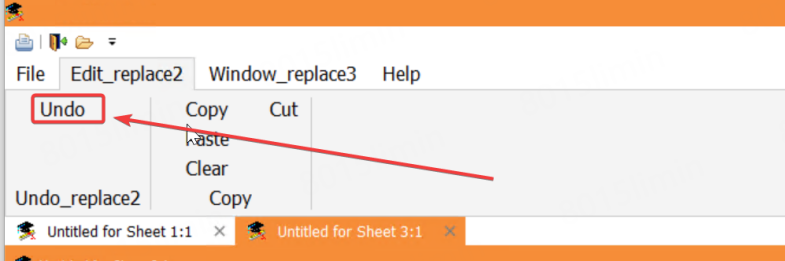
When the first sheet window or the default MDI Frame window is opened, the enabled property of the Undo menu item (m_undo) is set to false by default.

When you open the third sheet window and use the ReplaceCategoryByXML or ReplaceCategoryByJSON method to customize a category (such as Edit), and set the enabled property of the Undo button to true, although the Undo button in the ribbon bar is enabled, the enabled property of the original Undo menu item (m_undo) is still false. Therefore, the Clicked event of the original Undo menu item (m_undo) cannot be triggered.
Solution:
-
#1: Set the enabled property of the original Undo menu item (m_undo) to true in the script. This ensures that the clicked event of the Undo button in the RibbonBar control can be triggered normally.
-
#2: When using the ReplaceCategoryByXml or ReplaceCategoryByJSON method to customize the corresponding Undo button, define a clicked event for the button at the same time.
Currently the following Menu properties can be converted to the corresponding RibbonBar XML elements:
|
Properties of Traditional Style Menu |
Properties of Contemporary Style Menu |
XML element of RibbonBar Control |
|
Name |
Name |
MenuItemName |
|
Text |
Text |
Text |
|
MicroHelp |
MicroHelp |
PowerTipDescription |
|
Tag |
Tag |
Tag |
|
Visible |
Visible |
Visible |
|
Enabled |
Enabled |
Enabled |
|
Checked |
Checked |
Checked |
|
Default |
Default |
DefaultCommand |
|
Shortcut |
Shortcut |
Shortcut |
|
-- |
MenuImage |
PictureName |
|
-- |
Face Name |
Font |
|
-- |
TextSize |
TextSize |
Usages are consistent with the property settings of Menu. (Properties not listed are not supported)
Note that the Traditional Style Menu does not have the properties for setting fonts and font sizes, therefore, after displayed as a RibbonBar control, the default font and font size of the RibbonBar control (font size 12, Tahoma) will be used, and the corresponding PictureName will be used as the default icon.
Currently, the following Toolbar properties can be supported by QuickAccessToolbar:
-
ToolbarItemText
-
ToolbarItemName
-
ToolbarItemVisible
-
ToolbarItemOrder
-
ObjectType
-
Enabled
Usages are consistent with the Toolbar property settings. (Properties not listed are not supported)
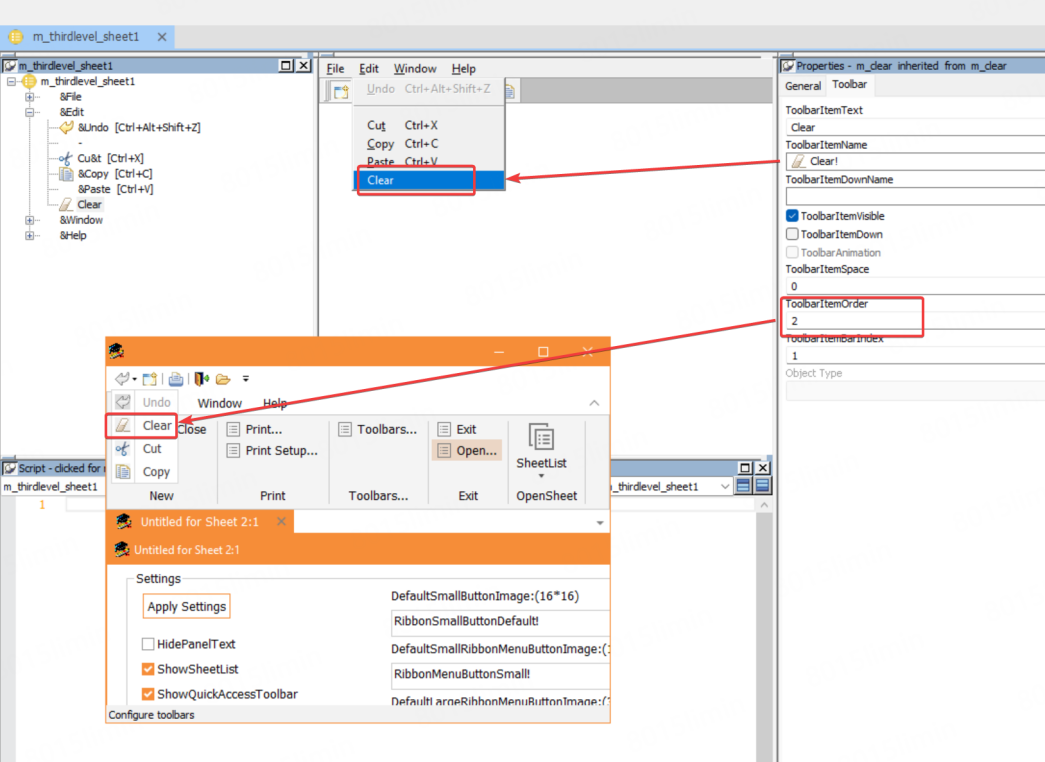
The following pictures show the effect before and after switching the display.
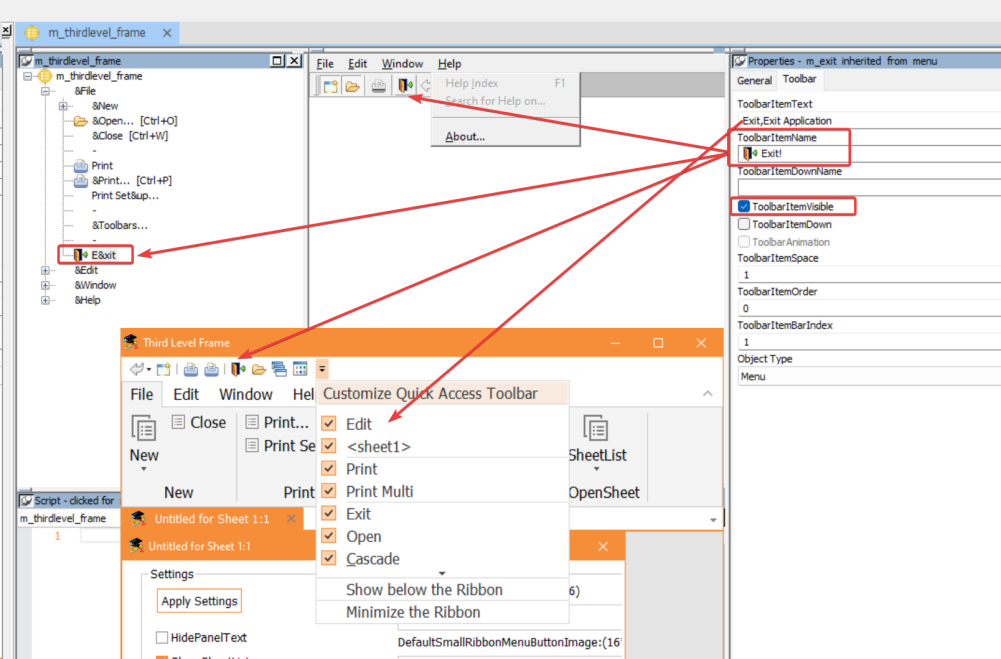
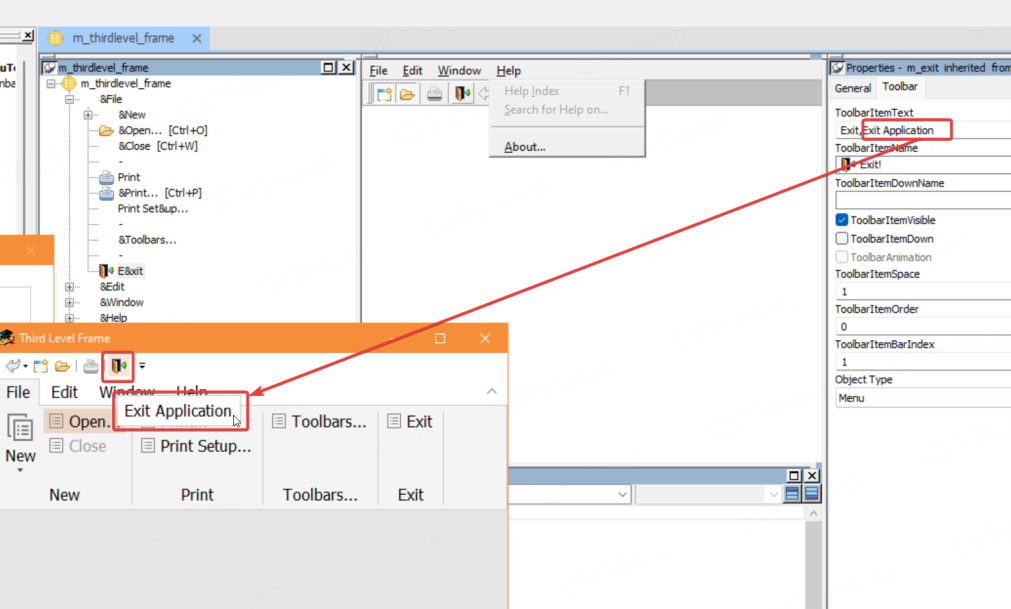
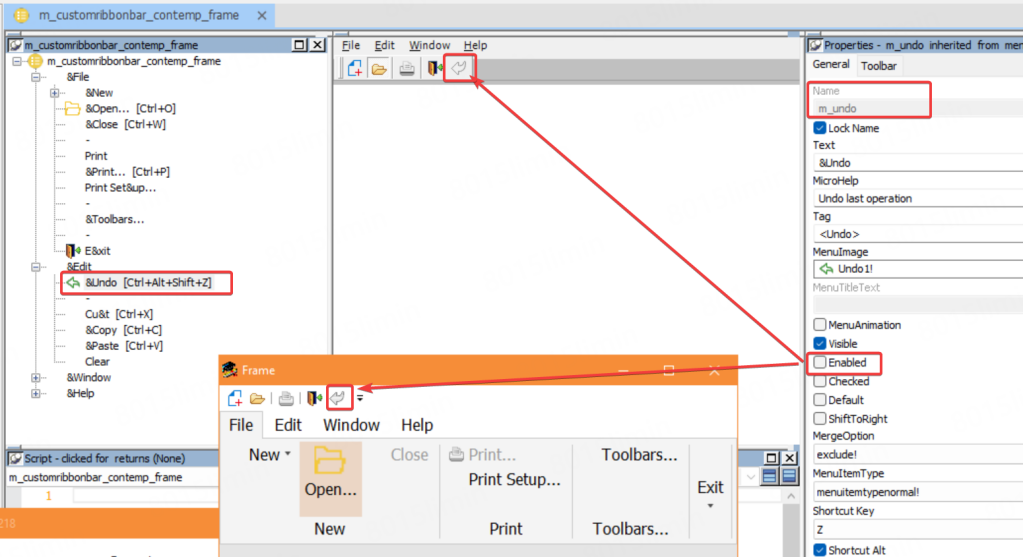
The Clear icon is originally at the last position in the drop-down list, but because its ToolbarITemOrder is set to 2, it is displayed as the second item in the drop-down list.
The ribbon items: category, panel, large button, small button, and ribbon menu converted from the menu items are all standard PowerBuilder RibbonBar item controls. They have the same properties, events, and functions as their corresponding standard RibbonBar item controls: RibbonCategoryItem, RibbonPanelItem, RibbonLargeButton, RibbonSmallButton, and RibbonMenuItem.
Other than that, a few properties, functions, and events are added to help developers have more control over the ribbon bar during conversion.
The MDI frame window has the following new property and event:
-
DisplayMenuAsRibbonBar property -- Whether to display a menu as a ribbon bar in the MDI frame window.
-
MenuChanged event -- Occurs when the ribbon bar is initialized. The DisplayMenuAsRibbonBar property must be enabled in order for this event to be triggered successfully. You will need to pass in the
oldnameparameter (the name of the menu for the MDI frame) and thenewnameparameter (the name of the menu associated with the active sheet (the currently opened sheet)), because several sheets can be open at the same time, and the menu associated with the active sheet will display as the menu of the frame, and whenever you switch the sheets, the menu (and the corresponding ribbon bar) of the frame will be initialized again.To ensure the scripts that customize the ribbon bar are executed whenever the sheet and menu is switched, it is recommended to place the scripts (such as properties and functions listed below) in the MenuChanged event. If you place the scripts in the other events such as the MDI window Open event, the scripts may not be executed when the sheet and menu is switched.
The Menu object has the following new properties:
-
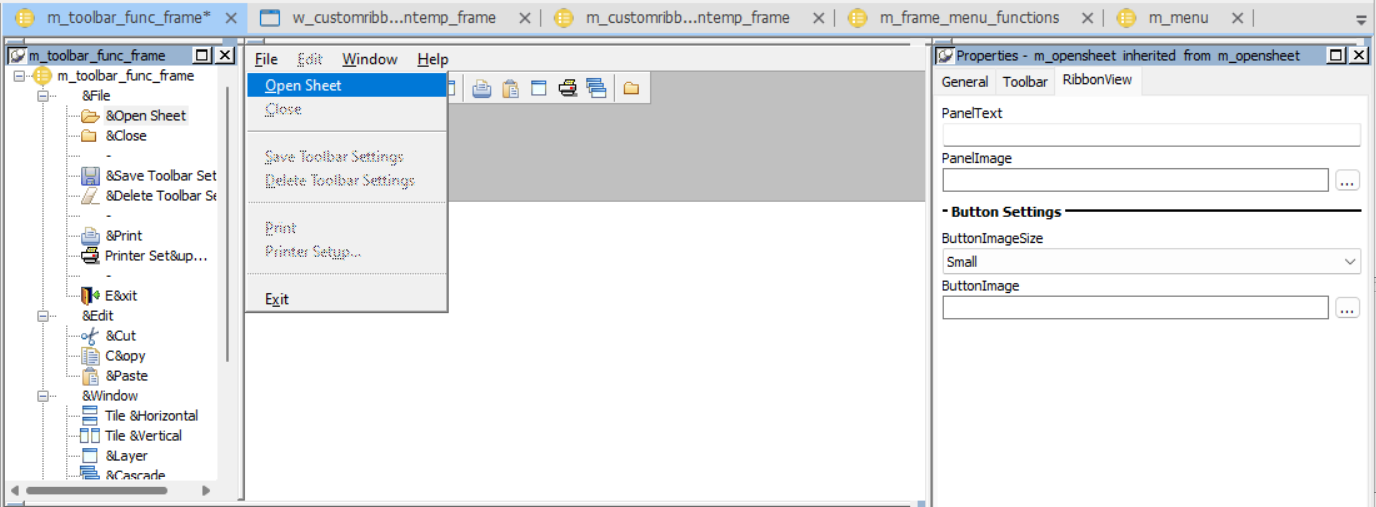
PanelText -- Specifies the text to be displayed as the panel name in the category. The menu items are divided into panels according to the menu separator line. You can only set the the PanelText property of the first menu item in the panel. If not specified, the name of the first menu item in the panel is used as the panel name by default.
-
ButtonImageSize property -- Specifies whether to display the menu as a large button or a small button (default).
-
ButtonImage property -- Specifies the image for the button. The default width and height of the image for the small button is 16 * 16 pixels. The default width and height of the image for the large button is 32 * 32 pixels. If no image is specified, the system default image will be displayed.
The RibbonBar control has the following new properties:
-
ShowSheetList property-- Whether to show a SheetList button with a dropdown menu that contains a list of opened sheets. When True, the SheetList button is automatically added to the last panel in the ribbon bar.
Note
This property is available only when the RibbonBar is converted from the menu (when DisplayMenuAsRibbonBar is enabled). The standalone RibbonBar control does not support this property.
-
ShowQuickAccessToolbar property -- Whether to show QuickAccessToolbar in the ribbon bar after the toolbar is displayed as QuickAccessToolbar. QuickAccessToolbar will display above (default) or below the categories. The QuickAccessToolbar item status are stored in the QatItems.qat file in the path specified by the Application SetQuickAccessToolbarStatusPath function.
Note
This property is available only when the QuickAccessToolbar is converted from the menu toolbar (when DisplayMenuAsRibbonBar is enabled). The standalone RibbonBar control does not support this property.
The RibbonCategoryItem, RibbonSmallButtonItem, RibbonLargeButtonItem, and RibbonMenuItem control has the following new properties:
-
MenuItemName property -- The unique identifier of the ribbon item (including RibbonCategoryItem, RibbonSmallButtonItem, RibbonLargeButtonItem, and RibbonMenuItem) that is converted from the menu item. It is by default the same value as the Name property of the original menu item. This property value associates the ribbon item with the menu item, so that the events of the menu item will be triggered successfully after conversion. You might want to use this property value only when you want to associate a ribbon item with a menu item, for example, when you create a ribbon item and want to trigger the event of a menu item, you can associate the menu item with the ribbon item by setting the Name property value of the menu item as the value of the MenuItemName property of the ribbon item.
Note
This property is valid only when the ribbon item control is converted from the menu (when DisplayMenuAsRibbonBar is enabled). The standalone ribbon item control does not support this property.
The RibbonBar control has the following new functions:
-
ReplaceCategoryByXML -- Replaces an existing category with the category from an XML configuration file.
-
ReplaceCategoryByJSON -- Replaces an existing category with the category from a JSON configuration file.
The Application object has the following new functions:
-
SetQuickAccessToolbarStatusPath -- Sets the file path of the QuickAccessToolbar item status (QatItems.qat). The default path is the same location as the current executable file.
-
GetQuickAccessToolbarStatusPath -- Gets the file path of the QuickAccessToolbar item status (QatItems.qat).
