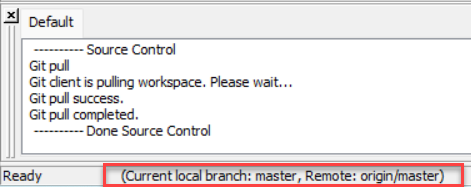
The Git Fetch feature helps keep your local repository up to date with remote changes without performing a merge or rebase automatically. Normally you use Fetch when you want to see what changed on the remote without altering your local work.
You can perform a Git Fetch from the PowerBuilder IDE, by right-clicking the workspace/solution in the System Tree and then selecting Git Fetch from the pop-up menu.
In the dialog that displays, configure the following options:
-
Remote - the name of the remote repository you are fetching from (for example,
origin). -
Branches to fetch - the branch to fetch from that remote repository, currently, all branches of that remote repository (for example
origin
                                              (all branch)
) will be fetched.
Git Fetch downloads the
latest commits, branches, and tags from the selected remote and
updates the local remote-tracking branches (for example,
origin/master). Fetch does not modify your current
branch or working tree - it only synchronizes remote references
locally so you can inspect or integrate changes later (for
example, by using rebase or
merge).
The Git Rebase feature gives developers more control over how they synchronize their local branch with the remote branch.
Previously, the IDE only supported Git Pull. When using pull, if the remote branch already had new commits, Git would create an extra merge commit during synchronization. Over time, this could make the commit history look cluttered and harder to follow.
With the new Git Rebase option, developers can choose to reapply their local commits on top of the updated remote branch. This keeps the commit history linear, clean, and easy to read, avoiding unnecessary merge commits.
-
Pull: Brings in remote changes but may add extra merge commits, leading to a more complex history.
-
Rebase: Reapplies your local changes on top of the latest remote changes, producing a straight and tidy history.
You can perform a Git Rebase from the PowerBuilder IDE, by right-clicking the workspace/solution in the System Tree and then selecting Git Rebase from the pop-up menu.
The Git Rebase menu is only available at the workspace/solution level.
In the dialog that displays, configure the following options:
-
Current Branch – the branch whose commits you want to move or rebase.
-
Target > Rebase onto – the branch you are aligning your work with, usually the latest version of master or main (e.g.,
origin/master).