

The code editor in PowerBuilder has been continuously enhanced in this release, providing a more modern and productive development experience. Below are the major improvements:
The following features help developers write code faster by providing real-time detection, insights, and intelligent completion.
-
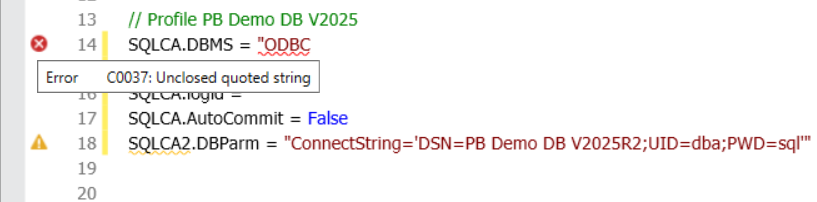
Real-time syntax checking — Syntax can be checked at real-time during coding. The syntax error and warning (if any) are indicated by icons at the beginning of the corresponding code lines. When you hover the cursor over an icon, the detailed message for the error or warning is displayed.
Real-time syntax checking can be enabled/disabled in the IDE Design menu > Options menu > Script tab page, when the Enable real-time syntax checking option is selected, syntax is checked immediately when a new line is entered or when the cursor pauses for two seconds while editing code; when this option is not selected, syntax is checked only when the code is saved or compiled.
Note
This option is disabled by default. Enabling real-time syntax checking may require additional system resources because the syntax check runs in a separate background thread while code is being edited. Therefore, for better stability and performance, we recommend enabling this option only when needed.
-
Auto-completion enhancements — Adds auto-completion for:
-
Enum members
-
Suggested list when typing a dot after the method name (e.g.,
this.GetParent().) -
Global functions, variables, and structures
-
-
Quick Info optimization — Fixed missing tooltips for certain functions, variables, and classes.
-
Parameter Info optimization — Fixed missing parameter hints for some function calls.
-
Clickable URLs — URLs in the editor are automatically recognized and can be opened by CTRL + single click (supported schemes: http/https).

The following features provide consistent formatting to help developers manipulate and maintain code.
-
Virtual space — Enables placing the caret beyond the end of a line for better code alignment. This feature can be turned off in the Design menu > Options menu > Script tab page.

-
Custom collapsible code blocks — Uses specific markers #region and #endregion in your code to manually create a collapsible and expandable code section. Lines between these markers can be folded as a block. These markers are automatically ignored during compilation and do not affect the program's execution. Currently the markers can only be #region and #endregion (cannot be any other names).

-
Format document/selection — Quickly format an entire file or only the selected code block to maintain consistent indentation and style.


The following features streamline code modification and batch operations.
-
Rectangular (column) selection — Allows selecting text in a rectangular block for batch editing. Press and hold Alt while dragging to select a block of text.

-
Move selected lines up/down — After placing the cursor in a line or selecting multiple lines, press Alt + Up/Down Arrow to move the line(s) without cutting and pasting.

-
Rename symbol — Developers can quickly rename identifiers (such as variables, functions, or objects) within the current document, by right-clicking a symbol in the editor and then selecting Rename. Note that Rename is limited to the current document and does not affect references in other scripts or objects.

-
Replace All result count — Displays the total number of replacements after a Replace All operation.
-
Shortcut key for toggling comment/uncomment: ALT + M and ALT + N
-
Shortcut key for converting uppercase/lowercase: CTRL + SHIFT + U and CTRL + U
The following features enhance code navigation and workflow efficiency.
-
Outline enhancement — Improves code folding/unfolding for indented structures, making navigation in large files more efficient.

-
Cursor navigation history — Navigates backwards and forwards to previous caret positions, similar to a web browser's back/forward buttons.

-
Bookmarks — Related commands are added to the main menu, context menu, and toolbar for quick marking and navigation within code.


You can right click the gray bar at the beginning of a line to add or remove a bookmark for that line.

-
Jump enhancements -- Improves the Jump feature to make code navigation faster, more intuitive, and consistent with modern development environments.
-
Main menu entry - A Jump command has been added to the main menu, in addition to the right-click context menu.
-
Shortcut key support - The Jump command can now be triggered via a dedicated shortcut key (CTRL + F12), in addition to the existing context menu option.
-
CTRL+Click navigation - Developers can press CTRL and click a symbol to jump directly to its definition.
-
Cursor-based recognition - Manual text selection is no longer required. The editor automatically identifies the symbol under the cursor and performs the jump, reducing unnecessary steps and improving workflow efficiency.
-
Variable, function and event – Jump now supports navigating to the definitions of variables, functions and events.
Limitations:
1. When the target object is already open in the Edit source, jumping to its variables, functions, and events is not supported.
2. When the current object is open in the Edit source, jumping to events of the current object, and variables and external functions visible in (Declare) is not supported.
-
