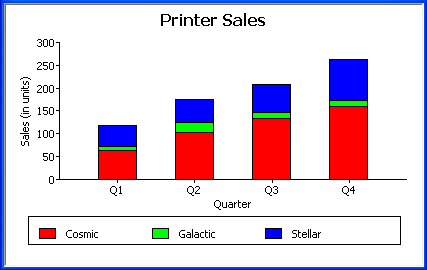
PowerBuilder provides many types of graphs for you to choose from. You choose the type on the Define Graph Style page in the DataWindow wizard or in the General page in the Properties view for the graph.
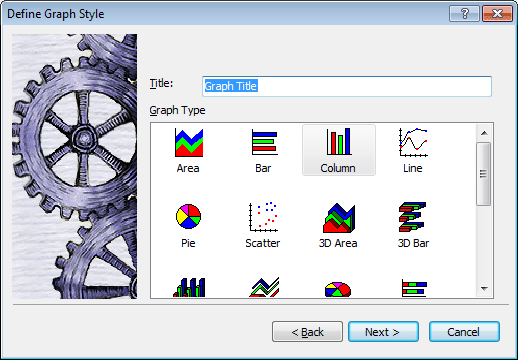
Area, bar, column, and line graphs are conceptually very similar. They differ only in how they physically represent the data values—whether they use areas, bars, columns, or lines to represent the values. All other properties are the same. Typically you use area and line graphs to display continuous data and use bar and column graphs to display noncontinuous data.
The only difference between a bar graph and a column graph is the orientation: in column graphs, values are plotted along the y axis and categories are plotted along the x axis. In bar graphs, values are plotted along the x axis and categories are plotted along the y axis.
Pie graphs typically show one series of data points with each data point shown as a percentage of a whole. The following pie graph shows the sales for Stellar printers for each quarter. You can easily see the relative values in each quarter. (PowerBuilder automatically calculates the percentages of each slice of the pie.)
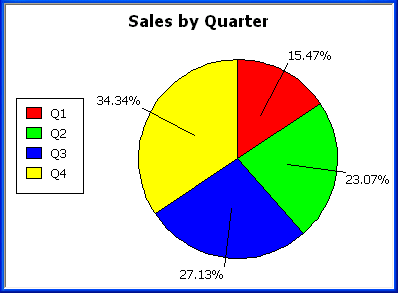
You can have pie graphs with more than one series if you want; the series are shown in concentric circles. Multiseries pie graphs can be useful in comparing series of data.
Scatter graphs show xy data points. Typically you use scatter graphs to show the relationship between two sets of numeric values.Non-numeric values, such as string and DateTime datatypes, do not display correctly.
Scatter graphs do not use categories. Instead, numeric values are plotted along both axes—as opposed to other graphs, which have values along one axis and categories along the other axis.
For example, the following data shows the effect of speed on the mileage of a sedan:
Here is the data in a scatter graph:
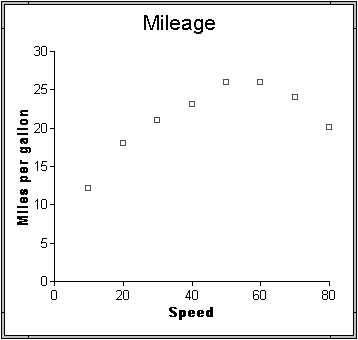
You can have multiple series of data in a scatter graph. You might want to plot mileage versus speed for several makes of cars in the same graph.
Traditional 3D graphs
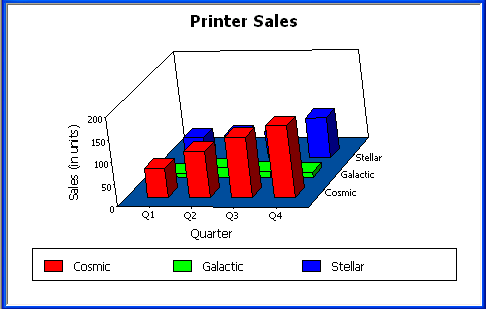
You can create three-dimensional (3D) graphs of area, bar, column, line, and pie graphs. In 3D graphs (except for 3D pie graphs), series are plotted along a third axis (the Series axis) rather than the Category axis. You can specify the perspective used to display the third dimension.
DirectX 3D graphs (Obsolete)
Obsolete notice
DirectX 3D graph rendering is obsolete. This feature relies on the DirectX SDK, which has been deprecated by Microsoft and is no longer actively maintained. As a result, the DirectX 3D graph is no longer recommended for new development.
DirectX 3D rendering allows you to display 3D graphs (Pie3D, Bar3D, Column3D, Line3D, and Area3D) with enhanced visual effects, such as transparency for data items or data series. These rendering styles were designed to provide a more visually rich presentation compared to traditional 3D graphs.
The DirectX graph rendering style is supported for standalone graph controls and for graph controls in a DataWindow object.
The following functions are used to configure DirectX 3D graph styles. They are retained for backward compatibility:
|
GetDataLabelling |
SetDataLabelling |
|
GetDataTransparency |
SetDataTransparency |
|
GetSeriesLabelling |
SetSeriesLabelling |
|
GetSeriesTransparency |
SetSeriesTransparency |
DirectX runtime dependency and limitations
Note
DirectX SDK has been deprecated by Microsoft and is no longer actively maintained.
DirectX 3D graph rendering depends on the DirectX runtime. When you select the Render3D check box on the General tab of the Properties view for a 3D graph for the first time, PowerBuilder attempts to launch the DirectX installer. If you choose not to install DirectX, the Render3D property is ignored.
End users of PowerBuilder applications that use DirectX 3D graphs must have the DirectX runtime installed on their computers. Because the DirectX SDK has been deprecated, DirectX 3D rendering may not be fully supported on newer versions of Windows or on systems using modern graphics drivers.
Even if the DirectX runtime is installed, selecting the Render3D check box might not change the appearance of the graph. This can occur if the graphics hardware or driver does not support the required Direct3D components.
You can check whether DirectX is supported by running dxdiag.exe, which is typically located in the Windows\System32 directory. On the Display tab of the DirectX Diagnostic Tool, you can verify whether Direct3D is enabled.