Pictures are PowerBuilder-specific controls that display an SVG, a bitmap (BMP) file, a GIF or animated GIF file, a JPEG file, a PNG file, a run-length encoded (.RLE) file, or an Aldus-style Windows metafile (WMF).
To display a picture
-
Place a picture control in the window.
-
In the General tab page in the Properties view, enter in the PictureName text box the name of the file you want to display, or click the ellipsis button to select a file from the Select Image dialog box.
The picture displays.
You can choose to resize or invert the image.
If you try to insert a very large image into a picture control, the image may fail to display. The maximum size that will display depends on the version of Windows, the graphics card and driver, and the available memory. Compressed files must be decompressed to display. Failure to display is most likely to occur with JPEG files because the JPEG standard supports very high compression and the decompressed content may be many times larger than the size of the JPEG file.
Be careful about how you use picture controls. They can serve almost any purpose. They have events, so users can click on them, but you can also use them simply to display images. Be consistent in their use so users know what they can do with them.
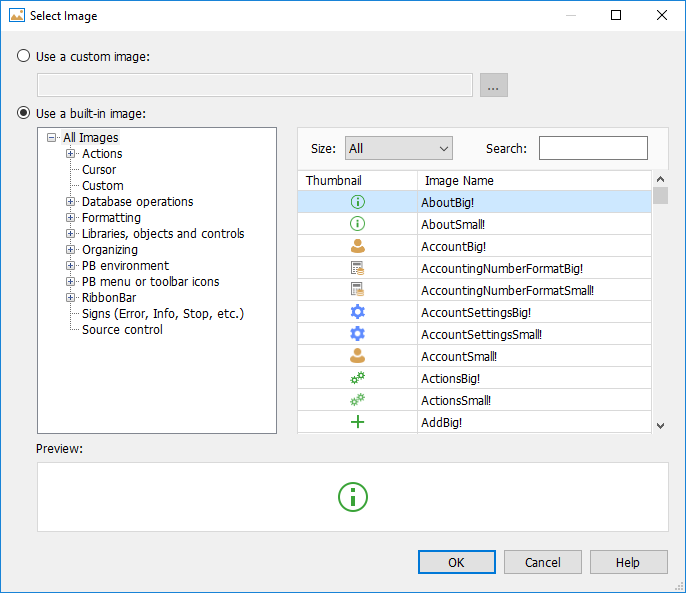
Select Image dialog box
The Select Image dialog box allows you to select an image to use in the application. You can choose either a custom image from your local system or a built-in image from the predefined image library.
To use SVG images, you will have to prepare the images by yourself and then choose "Use a custom image" and select the image. The built-in images provided by PowerBuilder are NOT SVG format currently.
-
Use a custom image
Select this option to specify an image file from your computer.
You can enter the file path (absolute or relative path) directly or click the Browse (...) button to locate the image file.
If you set a relative path for the custom image, make sure the path is relative to the target (*.pbt file) location.
-
Use a built-in image
Select this option to choose an image from the built-in image library.
The built-in images are grouped by categories and displayed in a tree view on the left (for example, Actions, Cursor, Database operations, etc.).
The image list on the right shows thumbnails and image names for the selected category.
You can filter images by Size or use the Search box to quickly locate a specific image.
The selected image is displayed in the Preview area at the bottom of the dialog.