

In PowerBuilder, you work with one or more targets in a workspace, or one or more projects in a solution. You can add as many targets/projects to the workspace/solution as you want, open and edit objects in multiple targets/projects, and build and deploy multiple targets/projects at once.
You choose targets/projects in the New dialog box. Here are the Target/Project types that are available in PowerBuilder:
-
Application, Template Application, Existing Application
A client/server or multitier executable application. Most of this book is concerned with building application targets/projects. See Working with Targets/Projects.
The Application target/project will use the PowerBuilder's built-in language, PowerScript.
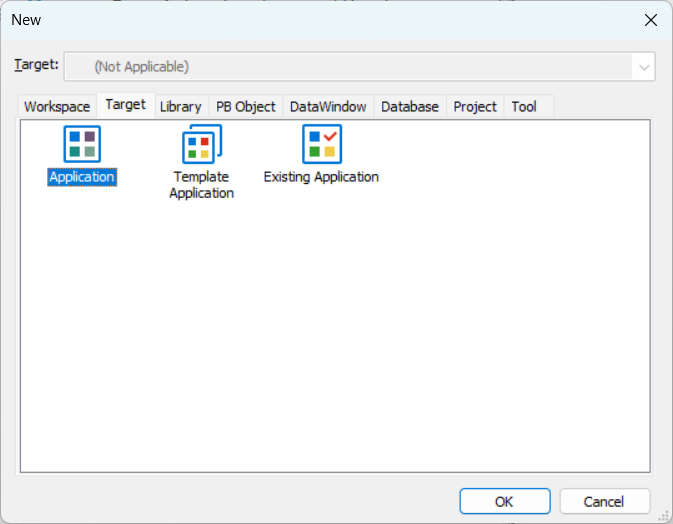
For more information about creating a workspace/solution and targets/projects, see Creating and opening workspaces/solutions and Creating a target/project.
The solution format (PBSLN) leverages the ultra-fast compiler, while the workspace format (PBW) relies on the standard compiler. To take advantage of the ultra-fast compiler, create new solutions or convert existing workspaces into solutions by following instructions in Creating and opening workspaces/solutions. Applications using the solution format will automatically benefit from the ultra-fast compiler.
Note
The solution format and ultra-fast compiler is available in the CloudPro or Professional edition of PowerBuilder 2025 or later (but NOT in the Standard edition).
The ultra-fast compiler processes code stored as plain text in the new solution format and offers the following benefits:
-
2-3x faster builds. Compared to the standard compiler, the ultra-fast compiler can significantly reduce compilation time by leveraging the Abstract Syntax Tree (AST), multi-threading, and concurrent processing. Full builds are at least 2-3 times faster and incremental builds are even faster.
Note
For faster builds in the solution format, use "PowerScript Build" instead of "Full Build", to speed up the process by skipping DataWindow recompilation. A "PowerScript Build" refers to a build process that skips recompiling DataWindows which can be time-consuming if they have not changed. This can be useful for optimizing build time, especially when DataWindows have not been modified.
You can right click the solution or project in the system tree, and then select "PowerScript Build" from the popup menu.
-
Eliminates code corruption. Source code storage is now separate from the P-code, preventing unexpected compilation errors or system malfunctions from corrupting the source code.
-
Automatic project conversion. Projects in the workspace format that utilize the standard PBL compiler can be automatically converted to the solution format that utilizes the ultra-fast compiler.
-
CI/CD integration. Support for CI/CD workflows is now built-in.
Table below compares the key features of the ultra-fast compiler and standard compiler.
|
|
Ultra-Fast Compiler |
Standard Compiler |
|---|---|---|
|
Source code compiled |
Source code in plain text format, with one object in one text file |
Source code in binary format, with multiple objects in one PBL file |
|
Pcode and Machine code |
Supports Pcode only Note: Machine code is unsupported, meaning you cannot build Dynamic Link Libraries (DLL files). If the application project is set to generate machine code, it will be automatically switched to Pcode when the application is converted to the solution format. |
Supports Pcode and Machine code |
|
Multi-thread or single-thread |
Supports multi-thread and multi-process. Note: The compiler and the IDE run in separate threads. |
Supports single-thread and single-process. The compiler runs in the same thread as the IDE. |
We conduct performance comparison tests for incremental build, full build, and deployment in the workspace format and solution format, as shown in the table below. The larger the application, the more significant the performance improvement.
|
App size |
Full Build |
Incremental Build (32-bit, Pcode) (Modified only app object and one window in another PBL) |
Full Deployment (32-bit, Pcode) |
|||
|
Workspace |
Solution |
Workspace |
Solution |
Workspace |
Solution |
|
|
58 PBLs, 370 MB in size |
816 |
112 |
771 |
115 |
1055 |
168 |
(unit: seconds)
The new solution format leverages the ultra-fast compiler to drastically improve compilation speed, reducing build times and improving developer productivity.
Another benefit of using the solution format is its direct interoperability with version control. In the new solution format, no intermediate file/folder or Pcode are managed in the version control system any more, because source code is stored individually in plain text format.
-
In workspace, both the source code and Pcode are stored together in the PBL file in binary format, and a single PBL file can contain the source code and Pcode for multiple objects. In such case, PowerBuilder has to use some intermediate file/folder (such as ws_objects folder) to import/export the source code from/to the PBL file in order to track and manage changes at the object level in the version control system. However, this may cause conflicts or corruption during PBL upload/download/merging or Pcode compilation because intermediate file/folder may get out of sync.
-
In solution, source code is stored as individual text files; and each object (such as windows, user objects, functions, and other components) has its own file. Each file can be managed separately and directly in the version control system, without needing to use any intermediate file/folder. Developers can easily track changes to individual files, and avoid conflicts.
-
In addition, in solution, Pcode is stored separately from the source code. This separation makes version control more precise by reducing the interference of Pcode changes and focusing on only changes to the source code.
In short, the source code structure in the solution format is more compatible with modern version control systems like Git/SVN.
Note
The PBNative and SCC API are not supported with the new solution format.
With the new solution format and ultra-fast compiler, source code is stored as plain text and can be directly compiled, eliminating the need to build PBLs when retrieving code from the SCM server.
Note
Likewise, when using PBAutoBuild to build a solution, after PBAutoBuild downloads source code from the Git/SVN server, the step of merging the source code into PBLs is eliminated, reducing the time for importing and building by PBAutoBuild.
By using the new solution format, you can also benefit from a more efficient process when working with the script.
-
When editing scripts
In the solution format, you can perform an incremental build or full build when the object is being edited in the painter window. In the workspace format, you will have to close all of the painter windows before building the application.
-
When saving scripts
When a script is saved (or when you select Compile or press Ctrl+L), the entire object (not just the script being edited) is automatically compiled.
The compilation results of the entire object are displayed in the "Output" window (any error/warning will display in the "Errors" or "Warnings" tab respectively), rather than in the message window below the script. And when there are compilation errors, the line number, column number, and error message will be displayed, and you can double click an entry in the "Output" window to jump to that line of code and fix the code in the code editor.
Changes made to the script are saved directly, regardless of whether the code compiles successfully. In other words, compilation errors or warnings no longer prevent you from saving the associated object, closing the script view, or opening a different script in the same view.
The solution format and its ultra-fast compiler does not support all of the features that are supported by the workspace format and its standard compiler. For example, the following features are NOT supported by the ultra-fast compiler and solution:
-
PBNative in source control
-
SCC API
-
Machine-code compilation
-
ORCA/OrcaScript compilation
-
PowerServer cursory (ultra-fast) build mode
-
A few PB functions behave differently, due to the change from PBL file to PBL folder in the solution format
Function
Workspace
Solution
If runs from IDE
If runs as EXE
1) If runs from IDE;
2) Works against external PBL file
1) If runs as EXE;
2) Works against external PBL file
1) If runs from IDE;
2) Works against PBL folder
1) If runs as EXE;
2) Works against PBL folder (This is rare scenario because no one would deploy PBL folders to the client)
AddToLibraryList
No
Yes
No
Yes
No
No
GetLibraryList
Yes
Yes
Yes
Yes
Yes
Yes
SetLibraryList
No
Yes
No
Yes
No
No
FindClassDefinition
Yes
Yes
Yes
Yes
Yes
No
FindFunctionDefinition
Yes
Yes
Yes
Yes
Yes
No
FindTypeDefinition
Yes
Yes
Yes
Yes
Yes
No
LibraryCreate
Yes
Yes
Yes
Yes
Yes (creates a PBL file not folder)
Yes (creates a PBL file not folder)
LibraryDelete
Yes
Yes
Yes
Yes
Yes
Yes
LibraryDirectory
Yes
Yes
Yes
Yes
Yes
Yes
LibraryDirectoryEx
LibraryExport
Yes
Yes
Yes
Yes
Yes
Yes
LibraryImport
Yes
Yes
No
Yes
Yes (only when running in 32-bit mode, not 64-bit)
No
Unsupported: FindGroup, FindClass, FindMatchingFunction, CreateSession, and RunApplication
You can use the system function
IsRunningAsSolutionto implement conditional logic depending on whether the application is running as a solution or workspace. For example, if certain functions are only applicable in one format, you can write code to handle the differences appropriately.
