

On the Windows platform, if an application does not explicitly restrict DLL loading paths or verify the trustworthiness of loaded DLLs, it may be vulnerable to DLL Search Order Hijacking attacks, which can lead to arbitrary code execution or privilege escalation.
PowerBuilder applications follow the standard Windows loader behavior and therefore share the same potential risks under default configurations.
This section explains the DLL loading mechanisms of Windows and PowerBuilder, and describes how the DLL secure loading solution introduced in PowerBuilder 2025 R2 reduces security risks through a combination of controlled DLL loading paths and DLL digital signature verification.
This section provides practical configuration and validation instructions for enabling DLL Strict Mode in PowerBuilder applications. It is intended to help customers securely configure DLL loading behavior, reduce the risk of DLL hijacking attacks, and safely deploy PowerBuilder applications in production environments.
The focus is on when to use DLL Strict Mode, how to configure it, and how to verify the results, rather than on internal implementation details.
Enable DLL Strict Mode if your application meets one or more of the following conditions:
-
The application loads PowerBuilder Runtime DLLs or third-party DLLs at runtime
-
The application is deployed to end-user machines or shared environments
-
The application directory, working directory, or PATH may be user-writable
-
You must comply with security policies or internal audit requirements
DLL Strict Mode can significantly reduce the risk of loading malicious or unexpected DLLs.
When DLL Strict Mode is enabled:
-
The Windows default DLL search order is restricted
-
DLLs are loaded only from the allowed paths
-
Uncontrolled locations such as the current working directory and PATH are excluded
| When Strict Mode is disabled | When Strict Mode is enabled |
|---|---|
|
Without DLL Strict Mode, PowerBuilder follows the default Windows DLL search behavior for loading DLLs. By default, the PowerBuilder application searches for DLLs in directories in the following order:
These locations may be writable by non-administrative users, which introduces security risks. |
The native client/server application searches for DLLs in directories in the following order:
The PowerClient/PowerServer application searches for DLLs in directories in the following order:
Application directory, working directory, XML runtime directory, and PATH directories are ignored unless explicitly added under Strict Mode. |
DLL Strict Mode does not apply to:
-
DLLs loaded using explicit absolute paths
DLLs loaded by specifying an absolute file path in the application code.
-
Indirect DLL dependencies
DLLs loaded as dependencies of another DLL and resolved by the Windows or .NET loader.
-
Internal DLL loading by third-party components
DLLs loaded internally by third-party libraries or components, outside the application's direct control.
-
.NET Runtime assembly probing
Assemblies resolved through .NET runtime probing paths, the Global Assembly Cache (GAC), or assembly binding rules.
-
System-level loading mechanisms such as KnownDLLs
DLL Strict Mode complements, but does not replace, OS-level security controls.
All required DLL directories must be added to the allowed path list under Strict Mode.
| What to configure | How to configure |
|---|---|
|
PowerBuilder Runtime DLLs |
For native client/server application projects, it is highly recommended to control the PowerBuilder Runtime loading path and verify the digital signature:
|
|
Database Client DLLs |
If your application uses externally installed database clients such as Oracle, SYC ASE, Informix etc., add the database client bin directory to the allowed path. For example, to connect with the Oracle client, add the "bin" directory to the path list: C:\oracle\client\bin For example, to connect with the SAP ASE client, add the "bin" directory to the path list: C:\SAP\ASE-16_0\bin |
|
External Function Calls |
If your application uses DECLARE ... LIBRARY or dynamically loads DLLs via Windows LoadLibrary function:
For example, to load a DLL using relative path "dll\test.dll", Function long gef_add(long a,long b) Library "dll\test.dll" alias for "add" Add the application directory to the path list: . |
|
.NET Assemblies |
If any DLLs are loaded via LoadWithDotNet function, add their directories to the path list under Strict Mode. For example, String is_assemblypath = "dll\test.dll" To allow DLLs to be loaded from the "dll" folder under application directory, Add "." to the path list: . Note that some .NET runtime directories are loaded automatically by the .NET runtime and are not controlled by DLL Strict Mode and DLLs loaded indirectly by the .NET assembly follow Windows or .NET loader rules and are not controlled by DLL Strict Mode. |
|
DLLs deployed as "External files" |
In PowerClient and PowerServer projects, DLLs configured in the project painter > Application tab > External files are deployed to (and later loaded from) the application directory. To allow DLLs to be loaded from the application directory, add "." to the path list: . |
|
WebBrowser (WebView2) |
The WebBrowser control loads WebView2 Runtime, however the underlying EmbeddedBrowserWebView.dll is not controlled by DLL Strict Mode. Please ensure WebView2 Runtime is installed and maintained using the official Microsoft distribution and update mechanism. |
Step 1: Enable DLL Strict Mode.
Enable Strict Mode in the Security tab of your project painter (including native C/S application project painter, PowerClient project painter, and PowerServer project painter).
Step 2: Configure the allowed paths.
Add all trusted DLL directories to the path list, including runtime DLLs, third-party DLLs, database client DLLs directories etc. as listed in the above table.
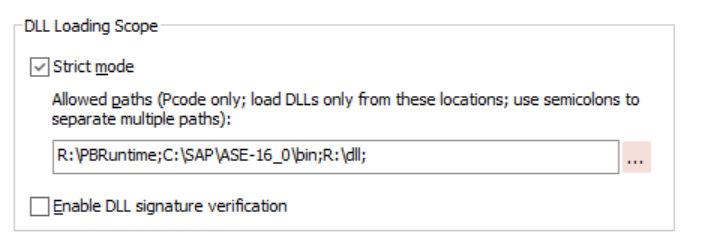
For example, for a native client/server application project, you can add the runtime DLL path, database client DLL path, and third-party DLL path, like below.
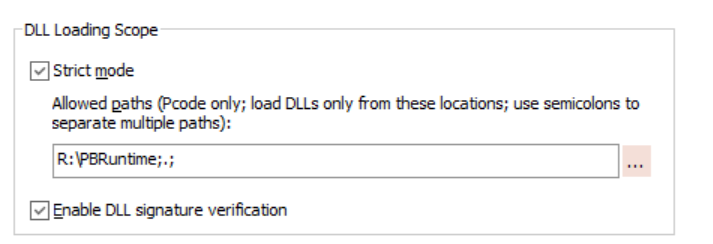
If the third-party DLLs are located under the application directory, you can add the application directory (.) like below.
For a PowerClient or PowerServer project, there is no need to add the runtime path, because the runtime DLLs will be automatically loaded from the directory according to the runtime version.
If the third-party DLLs are located under the application directory (for example, if there are DLLs deployed as "External files"), you can add the application directory (.) like below.

These options are also supported in PBAutoBuild and ORCA.
-
PBAutoBuild (applicable to native client/server, PowerClient, and PowerServer projects)
"DllLoadOptions": { "StrictMode": true, "AllowedPaths": "F:\\;", } -
ORCA (applicable to native client/server projects)
set exeinfo property strictmode <true|false>
set exeinfo property allowedpaths propertyString
Select Enable DLL signature verification in the Security tab of your project painter (including native C/S application project painter, PowerClient project painter, and PowerServer project painter).
Enabling digital signature verification prevents tampered or unsigned DLLs from being loaded.
Note: only Appeon-signed DLLs will be verified.
pbvm.dll must be in the same directory as the DLLs being verified.
This option is also supported in PBAutoBuild and ORCA.
-
PBAutoBuild (applicable to native client/server, PowerClient, and PowerServer projects)
"DllLoadOptions": { "VerifySignature": true } -
ORCA (applicable to native client/server projects)
set exeinfo property dllsignatureverification <true|false>
Possible performance issue
On some computers, enabling DLL signature verification may cause the application to run slowly. This is primarily due to online certificate revocation checks, which can time out if network access is restricted or blocked. When you disable the network connection (offline), the application skips these online checks or uses cached results, and the application performance returns to normal.
Solution: Update the local certificate store to reduce the need for online certificate retrieval. Under a network-connected environment, use certutil to download and install the latest root certificates (for example, by running the following command and importing them into the local store). This helps minimize delays caused by certificate chain validation.
certutil -generateSSTFromWU roots.sst
Using Process Monitor (Recommended)
Use Process Monitor to verify the actual DLL loading order and ensure that DLL Strict Mode is working as expected.
-
Launch Process Monitor with Administrator privileges.
-
Configure the following filters:
-
Process Name is <YourPowerBuilderApp.exe> -> Include
-
Operation is Load Image -> Include
(This filter shows DLLs that are actually loaded into memory. If you want to observe the full search and probing process, you can disable this filter.)
-
Path contains .dll -> Include
-
-
Start the application and trigger functionality that loads DLLs.
-
Review the Load Image events and check the Path and Result columns:
-
SUCCESS indicates the actual path from which the DLL was loaded.
-
NAME NOT FOUND indicates search paths that were attempted but rejected.
-
If only DLLs from System32, SysWOW64, and the allowed paths are successfully loaded, the DLL Strict Mode configuration is effective.
Additional Tools
You can use the following tools to perform additional verification:
-
Process Explorer / ListDLLs
View all DLLs currently loaded by the process along with their full paths.
-
signtool / sigcheck
Verify whether critical DLLs are digitally signed and whether the signatures are issued by trusted publishers.
-
Dependencies
Analyze indirect DLL dependencies to avoid scenarios where the main DLL is trusted, but its dependent DLLs are loaded from uncontrolled locations.
